пятница, 4 октября 2013 г.

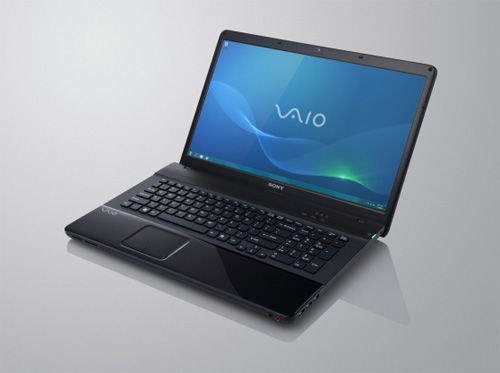
Download wallpaper Sony VAIO in high quality.

Download wallpaper Sony VAIO in high quality.

A large assembly of more than 100 kinds of wallpaper on your desktop.

Download wallpaper Sony VAIO in high quality Letitbit.net
VAIO небо, VAIO skyрабочий стол VAIOскачать красивые обои Sonyоригенальныесупер1920х10801280x768 разрешениевысокое качествовысокое разрешениеHi-techлунавысокое качество на рабочий столпрелестьустановить обои

Sony VAIO S, VPCS installation of drivers and utilities for Windows 7, Windows 8

After reinstalling Windows 7, Windows 7 on laptops VAIO series S, VPCS there is a need to install the necessary drivers and utilities for normal operation. Gathering information in different articles and forums , I will try to describe the sequence of installing the drivers and utilities , as well as describe the possible difficulties in the installation. Just posted links to download . As is always the case in laptops VAIO, Sony engineers with software namudrili very strongly , and it turns out that downloading software from the official site , it just does not fit, and if it is established that not all of it. Half of the devices remains unknown , conflicts , etc. The setup process takes a laptop is not much time.
download deivers After reinstalling Windows 7, Windows 7 on laptops VAIO series S, VPCS there is a need to install the necessary drivers and utilities for normal operation. Gathering information in different articles and forums , I will try to describe the sequence of installing the drivers and utilities , as well as describe the possible difficulties in the installation. Just posted links to download . As is always the case in laptops VAIO, Sony engineers with software namudrili very strongly , and it turns out that downloading software from the official site , it just does not fit, and if it is established that not all of it. Half of the devices remains unknown , conflicts , etc. The setup process takes a laptop is not much time. download deivers ALL DRIVERS Sony VAIO S, VPCS CAN DOWNLOAD ONE FILE Link 1: Download Letitbit.net Link 2: Download Turbobit.net  Support my group on Facebook.com or Twitter join us! Thank you in advance for your support and that you have chosen my blog.  Driver installation is as follows:  1. Motherboard Intel_Chipset_Driver_9.1.1.1025 motherboard drivers . 2 . Audio Realtek_Audio_Driver_6.0.1.6098 driver audikarty . 3 . NVIDIA_Graphics_Driver_8.17.11.9791 4 . Card reader Memory Stick / SD Ricoh_SD_Driver_6.13.2.7 PCI \ VEN_1180 & DEV_E822 & SUBSYS_905E104D generally not recognized by the computer in the " Device Manager " is displayed as " unknown device ". Require manual installation of drivers . In my case it was . Ricoh Memory Stick Controller. 5 . Stay install the driver Sony Firmware Extension Parser Device with a cunning name ID SNY5001. This will require manual review all of the devices ( known and unknown ) in the " Device Manager " with the name of the ID equipment. Perhaps it will take a lot of time ! But it's very important to do without these drivers will not work button! How to see the device ID of equipment in the " Device Manager " , right- click the properties in the dialog box , select the tab " Information" in the properties window , select " ID equipment " and see if our driver called SNY5001, then go ahead and install the driver downloaded from the Internet if another name for ID equipment , then do nothing and continue to seek close dalshe6 . Touchpad Synaptics_Touchpad_Driver_15.0.9.0 there usually are not any problems during installation. 7. 3G Modem Gobi2000_WWAN_Driver_1.1.80 naturally placed if it is in your PC. 8. Atheros_Ethernet_Driver_1.0.0.26 9. Broadcom_Bluetooth_Driver easy installation . 10 . Synaptics_Touchpad_Driver  Only after the successful installation of all drivers turn to install these tools in a strict sequence :  1. Install Sony Shared Library and then restart your computer ! 2 . Install Vaio Event Service 3 . Set the Setting Utility Series and restart your computer ! 4 . Install VAIO CONTROL CENTER. 5 . VAIO_Location_Utility and restart your computer ! 6. VAIO Power Management 7. VAIO Smart Network on request  If you like this article has helped you can thank the author's purse WebMoney Z276373925574  If Wasp some reason it does not work or you are the unwilling to spend their time - please contact us for help . Myproizvodim complete customization , installation and solve any problems notebooks Sony VAIO.                                                                            Anofriev Gregory Dnepropetrovsk                                                                           E-mail: grisha.anofriev@gmail.com  Tags : Sony VAIO S, VPCS, VPCS11A7E, VPCS11B7E, VPCS11C5E, VPCS11D7E, VPCS11E7E, VPCS11F7E, VPCS11G7E, VPCS11H7E, VPCS11J7E, VPCS11M1E / W, VPCS11M9R / B, VPCS11V9E / B, VPCS11V9R / B, VPCS11X9E / B, VPCS11X9R / S, VPCS12A7E, VPCS12A7R, VPCS12B7E, VPCS12C5E, VPCS12C7E, VPCS12D7E, VPCS12E7E, VPCS12F7E, VPCS12J1E / W, VPCS12L9E / B, VPCS12M9E / B, VPCS12M9R / S, VPCS12V9E / B, VPCS12V9R / B, VPCS12X9E / B, VPCS12X9R / B, VPCS13A7E, VPCS13B7E, VPCS13C5E, VPCS13I7E, VPCS13L8E / B, VPCS13L9E / B, VPCS13M1E / W, VPCS13S8R / S, VPCS13S9E / B, VPCS13S9R / S, VPCS13V9E / B, VPCS13X8E / B, VPCS13X9E / B, VPCS13X9R / B, VPCS13Z9R / B, VPCS111FM
Sony VAIO S, VPCS ALL DRIVERS For WINDOWS 7 WINDOWS 8:
Link 2: Download Turbobit.net

Warning if the link broken or not working , you can write to me about it and I will try to solve this problem.

Support my group on Facebook.com or Twitter join us! Thank you in advance for your support and that you have chosen my blog.

Driver installation is as follows:

1. Motherboard Intel_Chipset_Driver_9.1.1.1025 motherboard drivers .
2 . Audio Realtek_Audio_Driver_6.0.1.6098 driver audikarty .
3 . NVIDIA_Graphics_Driver_8.17.11.9791
4 . Card reader Memory Stick / SD Ricoh_SD_Driver_6.13.2.7 PCI \ VEN_1180 & DEV_E822 & SUBSYS_905E104D generally not recognized by the computer in the " Device Manager " is displayed as " unknown device ". Require manual installation of drivers . In my case it was . Ricoh Memory Stick Controller.
5 . Stay install the driver Sony Firmware Extension Parser Device with a cunning name ID SNY5001. This will require manual review all of the devices ( known and unknown ) in the " Device Manager " with the name of the ID equipment. Perhaps it will take a lot of time ! But it's very important to do without these drivers will not work button! How to see the device ID of equipment in the " Device Manager " , right- click the properties in the dialog box , select the tab " Information" in the properties window , select " ID equipment " and see if our driver called SNY5001, then go ahead and install the driver downloaded from the Internet if another name for ID equipment , then do nothing and continue to seek close dalshe6 . Touchpad Synaptics_Touchpad_Driver_15.0.9.0 there usually are not any problems during installation.
7. 3G Modem Gobi2000_WWAN_Driver_1.1.80 naturally placed if it is in your PC.
8. Atheros_Ethernet_Driver_1.0.0.26
9. Broadcom_Bluetooth_Driver easy installation .
10 . Synaptics_Touchpad_Driver

Only after the successful installation of all drivers turn to install these tools in a strict sequence :

1. Install Sony Shared Library and then restart your computer !
2 . Install Vaio Event Service
3 . Set the Setting Utility Series and restart your computer !
4 . Install VAIO CONTROL CENTER.
5 . VAIO_Location_Utility and restart your computer !
6. VAIO Power Management
7. VAIO Smart Network on request

If you like this article has helped you can thank the author's purse WebMoney Z276373925574

If Wasp some reason it does not work or you are the unwilling to spend their time - please contact us for help . Myproizvodim complete customization , installation and solve any problems notebooks Sony VAIO.

                                                                          Anofriev Gregory Dnepropetrovsk
                                                                          E-mail: grisha.anofriev@gmail.com

Tags : Sony VAIO S, VPCS, VPCS11A7E, VPCS11B7E, VPCS11C5E, VPCS11D7E, VPCS11E7E, VPCS11F7E, VPCS11G7E, VPCS11H7E, VPCS11J7E, VPCS11M1E / W, VPCS11M9R / B, VPCS11V9E / B, VPCS11V9R / B, VPCS11X9E / B, VPCS11X9R / S, VPCS12A7E, VPCS12A7R, VPCS12B7E, VPCS12C5E, VPCS12C7E, VPCS12D7E, VPCS12E7E, VPCS12F7E, VPCS12J1E / W, VPCS12L9E / B, VPCS12M9E / B, VPCS12M9R / S, VPCS12V9E / B, VPCS12V9R / B, VPCS12X9E / B, VPCS12X9R / B, VPCS13A7E, VPCS13B7E, VPCS13C5E, VPCS13I7E, VPCS13L8E / B, VPCS13L9E / B, VPCS13M1E / W, VPCS13S8R / S, VPCS13S9E / B, VPCS13S9R / S, VPCS13V9E / B, VPCS13X8E / B, VPCS13X9E / B, VPCS13X9R / B, VPCS13Z9R / B, VPCS111FM

воскресенье, 29 сентября 2013 г.

Sony VAIO EL, VPCEL installation of drivers and utilities for Windows 7, Windows 8

After reinstalling Windows 7 64bit or Windows 8  on laptops Sony VAIO series EL, VPCEL there is a need to install the necessary drivers and utilities for normal operation. Gathering information in different articles and forums, I will try to describe the sequence of installing the drivers and utilities, as well as describe the possible difficulties in the installation. Just posted links to download. As is always the case in laptops VAIO, Sony engineers with software namudrili very strongly, and it turns out that downloading software from the official site, it just does not fit, and if it is established that not all of it. Half of the devices remains unknown, conflicts, etc. The setup process takes a laptop is not much time.
downloads driver, VPCEL13FXVPCEL13FX / B, VPCEL13FX / W, VPCEL15FX, VPCEL15FX / B, VPCEL15FX / W, VPCEL17FX, VPCEL17FX / B, VPCEL17FX / W, VPCEL22FX, VPCEL22FX / B, VPCEL24FX, VPCEL24FX / B, VPCEL24FX / W, VPCEL26FX, VPCEL26FX / B, VPCEL26FX / W,  VPCEL1E1E/BVPCEL1E1E/W,VPCEL1E1R/B,VPCEL1E1R/W,VPCEL2S1E/B,VPCEL2S1E/W, VPCEL2S1R/B,VPCEL2S1R/W,VPCEL3S1E/B,VPCEL3S1E/W,VPCEL3S1R/B,VPCEL3S1R/W
Sony VAIO EL, VPCEL ALL DRIVERS For WINDOWS 7 WINDOWS 8:
Link 2: Download Turbobit.net

Warning if the link broken or not working , you can write to me about it and I will try to solve this problem.

Support my group on Facebook.com or Twitter join us! Thank you in advance for your support and that you have chosen my blog.

Driver installation is as follows:

1. Chipset_Driver motherboard drivers .

2 . Audio_Driver driver audikarty .

3.Graphics Driver (AMD).

4 . Card reader Memory Stick / SD Ricoh_SD_Driver  PCI \ VEN_1180 & DEV_E822 & SUBSYS_905E104D generally not recognized by the computer in the " Device Manager " is displayed as " unknown device ". Require manual installation of drivers . In my case it was . Ricoh Memory Stick Controller.

5 . Stay install the driver Sony Firmware Extension Parser Device with a cunning name ID SNY5001. This will require manual review all of the devices ( known and unknown ) in the " Device Manager " with the name of the ID equipment. Perhaps it will take a lot of time ! But it's very important to do without these drivers will not work button! How to see the device ID of equipment in the " Device Manager " , right- click the properties in the dialog box , select the tab " Information" in the properties window , select " ID equipment " and see if our driver called SNY5001, then go ahead and install the driver downloaded from the Internet if another name for ID equipment , then do nothing and continue to seek close dalshe6 . Touchpad Synaptics_Touchpad_Driver_15.0.9.0 there usually are not any problems during installation.

7. Ethernet_Driver_11.25.2.3

8. Broadcom_Bluetooth_Driver_6.3.0.5600 easy installation .

Only after the successful installation of all drivers turn to install these tools in a strict sequence :

1. Install Sony Shared Library and then restart your computer !

2 . Install Vaio Event Service

3 . Set the Setting Utility Series and restart your computer !

4 . Install VAIO CONTROL CENTER.

5 . VAIO_Location_Utility and restart your computer !

6. VAIO Power Management

7. VAIO Smart Network on request

If you like this article has helped you can thank the author's purse WebMoney Z276373925574

If you for some reason it does not work or you are the unwilling to spend their time - please contact us for help . Myproizvodim complete customization , installation and solve any problems notebooks Sony VAIO.


                                                                          Anofriev Gregory Dnepropetrovsk
                                                                          E-mail: grisha.anofriev @ gmail.com

Tags : VPCEL13FXVPCEL13FX / B, VPCEL13FX / W, VPCEL15FX, VPCEL15FX / B, VPCEL15FX / W, VPCEL17FX, VPCEL17FX / B, VPCEL17FX / W, VPCEL22FX, VPCEL22FX / B, VPCEL24FX, VPCEL24FX / B, VPCEL24FX / W, VPCEL26FX, VPCEL26FX / B, VPCEL26FX / W,  VPCEL1E1E/BVPCEL1E1E/W,VPCEL1E1R/B,VPCEL1E1R/W,VPCEL2S1E/B,VPCEL2S1E/W,
VPCEL2S1R/B,VPCEL2S1R/W,VPCEL3S1E/B,VPCEL3S1E/W,VPCEL3S1R/B,VPCEL3S1R/W 

суббота, 28 сентября 2013 г.

Sony VAIO EK, VPCEK installation of drivers and utilities for Windows 7, Windows 8

After the re install Windows 7 or Windows 8 on laptops VAIO series EK, VPCEK, VPC-EK there is a need to install the necessary drivers and utilities for normal operation. Gathering information in different articles and forums, I will try to describe the sequence of installing the drivers and utilities, as well as describe the possible difficulties in the installation. Just posted links to download. As is always the case in laptops VAIO, Sony engineers with software namudrili very strongly, and it turns out that downloading software from the official site, it just does not fit, and if it is established that not all of it. Half of the devices remains unknown, conflicts, etc. The setup process takes a laptop is not much time.
Sony VAIO EK, VPCEK installation of drivers and utilities for Windows 7, Windows 8
Sony VAIO EK, VPCEK ALL DRIVERS For WINDOWS 7 WINDOWS 8:
Link 2: Download Turbobit.net

Warning if the link broken or not working , you can write to me about it and I will try to solve this problem.

Support my group on Facebook.com or Twitter join us! Thank you in advance for your support and that you have chosen my blog.

Driver installation is as follows:

1. Chipset_Driver motherboard drivers .

2 . Audio_Driver driver audikarty .

3.Graphics Driver (AMD)

4 . Card reader Memory Stick / SD Ricoh_SD_Driver_6.13.2.7 PCI \ VEN_1180 & DEV_E822 & SUBSYS_905E104D generally not recognized by the computer in the " Device Manager " is displayed as " unknown device ". Require manual installation of drivers . In my case it was . Ricoh Memory Stick Controller.

5 . Stay install the driver Sony Firmware Extension Parser Device with a cunning name ID SNY5001. This will require manual review all of the devices ( known and unknown ) in the " Device Manager " with the name of the ID equipment. Perhaps it will take a lot of time ! But it's very important to do without these drivers will not work button! How to see the device ID of equipment in the " Device Manager " , right- click the properties in the dialog box , select the tab " Information" in the properties window , select " ID equipment " and see if our driver called SNY5001, then go ahead and install the driver downloaded from the Internet if another name for ID equipment , then do nothing and continue to seek close dalshe6 . Touchpad Synaptics_Touchpad_Driver_15.0.9.0 there usually are not any problems during installation.

7. Ethernet_Driver_11.25.2.3

8. Broadcom_Bluetooth_Driver_6.3.0.5600 easy installation .

Only after the successful installation of all drivers turn to install these tools in a strict sequence :

1. Install Sony Shared Library and then restart your computer !

2 . Install Vaio Event Service

3 . Set the Setting Utility Series and restart your computer !

4 . Install VAIO CONTROL CENTER.

5 . VAIO_Location_Utility and restart your computer !

6. VAIO Power Management

7. VAIO Smart Network on request

If you like this article has helped you can thank the author's purse WebMoney Z276373925574

If you for some reason it does not work or you are the unwilling to spend their time - please contact us for help . Myproizvodim complete customization , installation and solve any problems notebooks Sony VAIO.


                                                                          Anofriev Gregory, Ukraine
                                                                          E-mail: grisha.anofriev @ gmail.com

Tags : VPCEK2S1R/B, VPCEK2S1R/W, VPCEK3S1R/B, VPCEK3S1R/W 

воскресенье, 15 сентября 2013 г.

Sony VAIO EJ, VPCEJ installation of drivers and utilities for Windows 7, Windows 8

After reinstalling Windows 7, Windows 8 64bit VAIO series of laptops EJ, VPCEJ there is a need to install the necessary drivers and utilities for normal operation. Gathering information in different articles and forums, I will try to describe the sequence of installing the drivers and utilities, as well as describe the possible difficulties in the installation. Just posted links to download. As is always the case in laptops VAIO, Sony engineers with software namudrili very strongly, and it turns out that downloading software from the official site, it just does not fit, and if it is established that not all of it. Half of the devices remains unknown, conflicts, etc. The setup process takes a laptop is not much time.
VPCEJ12FX/B,VPCEJ14FX,VPCEJ14FX/B,VPCEJ14FX/BC,VPCEJ16FX,VPCEJ16FX/B,VPCEJ190X,VPCEJ1AFX,VPCEJ1AFX/B,VPCEJ22FX,VPCEJ22FX/B,VPCEJ22FX/BC,VPCEJ26FX,VPCEJ26FX/B,VPCEJ28FX,VPCEJ28FX/B,VPCEJ290X,VPCEJ2AFX,VPCEJ2AFXB,VPCEJ2BFX,VPCEJ2BFXB,VPCEJ1C5E,VPCEJ1E1E/B,VPCEJ1E1E/W,VPCEJ1E1R/W,VPCEJ1J1E/B,VPCEJ1J1E/W,VPCEJ1L1E/B,VPCEJ1L1E/W,VPCEJ1L1R/W,VPCEJ1M1E/B,VPCEJ1M1E/W,VPCEJ1M1R/B,VPCEJ1M9E/B,VPCEJ1S1E/B,VPCEJ1Z1E/B,VPCEJ1Z1E/W,VPCEJ2A4E,VPCEJ2A9E,VPCEJ2B1E/B,VPCEJ2B4E,VPCEJ2B9E,VPCEJ2C4E,VPCEJ2C5E,VPCEJ2D1E/B,VPCEJ2E1E/B,VPCEJ2E1E/W,VPCEJ2J1E/B,VPCEJ2J1E/W,VPCEJ2L1E/B,VPCEJ2L1E/W,VPCEJ2L1R/W,VPCEJ2M1E/B,VPCEJ2M1E/W,VPCEJ2M1R/W,VPCEJ2S1E/B,VPCEJ2S1R/B,VPCEJ2S9E/B,VPCEJ2Z1E/B,VPCEJ3A4E,VPCEJ3B1E/B,VPCEJ3B1E/W,VPCEJ3C5E,VPCEJ3D1E/B,VPCEJ3D1E/W,VPCEJ3E1E/B,VPCEJ3J1E/W,VPCEJ3K1E/B,VPCEJ3K1E/W,VPCEJ3L1E/B,VPCEJ3L1E/W,VPCEJ3L1R/W,VPCEJ3M1E/B,VPCEJ3M1E/W,VPCEJ3M1R/W,VPCEJ3N1E/B,VPCEJ3Q1E/B,VPCEJ3S1E/B,VPCEJ3S1R/B,VPCEJ3T1E/B,VPCEJ3Z1E/B

Sony VAIO EJ, VPCEJ ALL DRIVERS For WINDOWS 7 WINDOWS 8:
Link 2: Download Turbobit.net

Warning if the link broken or not working , you can write to me about it and I will try to solve this problem.

Support my group on Facebook.com or Twitter join us! Thank you in advance for your support and that you have chosen my blog.

Driver installation is as follows:

1. Motherboard Intel_Chipset_Driver motherboard drivers .

2 . Audio Realtek_Audio_Driver driver audikarty .

3 . Video Intel_Graphics_Driver

4 . Card reader Memory Stick / SD Ricoh_SD_Driver_6.13.2.7 PCI \ VEN_1180 & DEV_E822 & SUBSYS_905E104D generally not recognized by the computer in the " Device Manager " is displayed as " unknown device ". Require manual installation of drivers . In my case it was . Ricoh Memory Stick Controller.

5 . Stay install the driver Sony Firmware Extension Parser Device with a cunning name ID SNY5001. This will require manual review all of the devices ( known and unknown ) in the " Device Manager " with the name of the ID equipment. Perhaps it will take a lot of time ! But it's very important to do without these drivers will not work button! How to see the device ID of equipment in the " Device Manager " , right- click the properties in the dialog box , select the tab " Information" in the properties window , select " ID equipment " and see if our driver called SNY5001, then go ahead and install the driver downloaded from the Internet if another name for ID equipment , then do nothing and continue to seek close dalshe6 . Touchpad Synaptics_Touchpad_Driver_15.0.9.0 there usually are not any problems during installation.
7. 3G Modem Atheros_WLAN_Driver_7.7.0.429 naturally placed if it is in your PC.

8. Marvell_Ethernet_Driver

9. Broadcom_Bluetooth_Driver easy installation .

Only after the successful installation of all drivers turn to install these tools in a strict sequence :

1. Install Sony Shared Library and then restart your computer !

2 . Install Vaio Event Service

3 . Set the Setting Utility Series and restart your computer !

4 . Install VAIO CONTROL CENTER.

5 . VAIO_Location_Utility and restart your computer !

6. VAIO Power Management

7. VAIO Smart Network on request

If you like this article has helped you can thank the author's purse WebMoney Z276373925574

If you for some reason it does not work or you are the unwilling to spend their time - please contact us for help . Myproizvodim complete customization , installation and solve any problems notebooks Sony VAIO.


                                                                      Anofriev Gregory
                                                                      Dnepropetrovsk
                                                                      E-mail: grisha.anofriev@gmail.com

Tags: VPCEJ12FX/B, VPCEJ14FX, VPCEJ14FX/B, VPCEJ14FX/BC, VPCEJ16FX, VPCEJ16FX/B, VPCEJ190X, VPCEJ1AFX, VPCEJ1AFX/B, VPCEJ22FX, VPCEJ22FX/B, VPCEJ22FX/BC, VPCEJ26FX, VPCEJ26FX/B, VPCEJ28FX, VPCEJ28FX/B, VPCEJ290X, VPCEJ2AFX,VPCEJ2AFXB, VPCEJ2BFX, VPCEJ2BFXB, VPCEJ1C5E,VPCEJ1E1E/B,VPCEJ1E1E/W, VPCEJ1E1R/W,VPCEJ1J1E/B, VPCEJ1J1E/W,VPCEJ1L1E/B,VPCEJ1L1E/W, VPCEJ1L1R/W, VPCEJ1M1E/B,VPCEJ1M1E/W, VPCEJ1M1R/B,VPCEJ1M9E/B,VPCEJ1S1E/B,VPCEJ1Z1E/B,VPCEJ1Z1E/W,VPCEJ2A4E, VPCEJ2A9E,VPCEJ2B1E/B,VPCEJ2B4E,VPCEJ2B9E, VPCEJ2C4E, VPCEJ2C5E, VPCEJ2D1E/B,VPCEJ2E1E/B,VPCEJ2E1E/W, VPCEJ2J1E/B,VPCEJ2J1E/W,VPCEJ2L1E/B,VPCEJ2L1E/W,VPCEJ2L1R/W,VPCEJ2M1E/B, VPCEJ2M1E/W,VPCEJ2M1R/W, VPCEJ2S1E/B,VPCEJ2S1R/B,VPCEJ2S9E/B, VPCEJ2Z1E/B,VPCEJ3A4E,VPCEJ3B1E/B,VPCEJ3B1E/W,VPCEJ3C5E,VPCEJ3D1E/B,VPCEJ3D1E/W,VPCEJ3E1E/B,VPCEJ3J1E/W, VPCEJ3K1E/B,VPCEJ3K1E/W,VPCEJ3L1E/B,VPCEJ3L1E/W,VPCEJ3L1R/W,VPCEJ3M1E/B,VPCEJ3M1E/W,VPCEJ3M1R/W, VPCEJ3N1E/B,VPCEJ3Q1E/B,VPCEJ3S1E/B,VPCEJ3S1R/B,VPCEJ3T1E/B, VPCEJ3Z1E/B

Sony VAIO EE, VPCEE installation of drivers and utilities for Windows 7, Windows 7

After reinstalling Windows 7 64bit, Windows 8 on VAIO laptops series EE there is a need to install the necessary drivers and utilities for normal operation. Gathering information in different articles and forums, I will try to describe the sequence of installing the drivers and utilities, as well as describe the possible difficulties in the installation. Just posted links to download. As is always the case in laptops VAIO, Sony engineers with software namudrili very strongly, and it turns out that downloading software from the official site, it just does not fit, and if it is established that not all of it. Half of the devices remains unknown, conflicts, etc. The setup process takes a laptop is not much time.
скачать драйверы, обои
Sony VAIO EE, VPCEE ALL DRIVERS For WINDOWS 7 WINDOWS 8:
Link 2: Download Turbobit.net

Warning if the link broken or not working , you can write to me about it and I will try to solve this problem.

Support my group on Facebook.com or Twitter join us! Thank you in advance for your support and that you have chosen my blog.

Driver installation is as follows:

1. AMD Sata Drive

2 . Audio Realtek_Audio_Driver driver audikarty .

3 . AMD Graphics Driver

4 . Card reader Memory Stick / SD Ricoh_SD_Driver_6.13.2.7 PCI \ VEN_1180 & DEV_E822 & SUBSYS_905E104D generally not recognized by the computer in the " Device Manager " is displayed as " unknown device ". Require manual installation of drivers . In my case it was . Ricoh Memory Stick Controller.

5 . Stay install the driver Sony Firmware Extension Parser Device with a cunning name ID SNY5001. This will require manual review all of the devices ( known and unknown ) in the " Device Manager " with the name of the ID equipment. Perhaps it will take a lot of time ! But it's very important to do without these drivers will not work button! How to see the device ID of equipment in the " Device Manager " , right- click the properties in the dialog box , select the tab " Information" in the properties window , select " ID equipment " and see if our driver called SNY5001, then go ahead and install the driver downloaded from the Internet if another name for ID equipment , then do nothing and continue to seek close dalshe6 . Touchpad Synaptics_Touchpad_Driver_15.0.9.0 there usually are not any problems during installation.
7. 3G Modem Atheros_WLAN_Driver_7.7.0.429 naturally placed if it is in your PC.

8. Marvell_Ethernet_Driver_11.25.2.3

9. Broadcom_Bluetooth_Driver_6.3.0.5600 easy installation .

Only after the successful installation of all drivers turn to install these tools in a strict sequence :

1. Install Sony Shared Library and then restart your computer !

2 . Install Vaio Event Service

3 . Set the Setting Utility Series and restart your computer !

4 . Install VAIO CONTROL CENTER.

5 . VAIO_Location_Utility and restart your computer !

6. VAIO Power Management

7. VAIO Smart Network on request

If you like this article has helped you can thank the author's purse WebMoney Z276373925574

If you for some reason it does not work or you are the unwilling to spend their time - please contact us for help . Myproizvodim complete customization , installation and solve any problems notebooks Sony VAIO.


                                                         Anofriev Gregory
                                                         Dnepropetrovsk
                                                         E-mail: grisha.anofriev@gmail.com

Tags:VPCEE2E1E/WI,VPCEE2E1R/WI,VPCEE2M1E/WI,VPCEE2M1R/WI,VPCEE2S1E/BQ,VPCEE2S1E/WI,VPCEE2S1R/BQ,VPCEE3E0E/WI,VPCEE3E1E/WI,VPCEE3E1R/WI,VPCEE3J0E/BQ,VPCEE3J1E/WI,VPCEE3L0E/WI,VPCEE3M1E/BQ,VPCEE3M1E/WI,VPCEE3M1R/BQ,VPCEE3S1E/BQ,VPCEE3S1E/WI,VPCEE3Z0E/BQ,VPCEE4E1E/WI,VPCEE4E1R/BQ,VPCEE4E1R/WI,VPCEE4J1E/WI,VPCEE4M1E/BQ,VPCEE4M1R/BQ,VPCEE21FX/BI,VPCEE21FX/T,VPCEE21FX/WI,VPCEE22FX,VPCEE22FX/BI,VPCEE22FX/T,VPCEE22FX/WI,VPCEE23FX,VPCEE23FX/BI,VPCEE23FX/T,VPCEE23FX/WI,VPCEE25FX,VPCEE25FX/BI,VPCEE25FX/T,VPCEE25FX/WI,VPCEE26FX,VPCEE26FX/BI,VPCEE26FX/T,VPCEE26FX/WI,VPCEE27FM,VPCEE27FM/BI,VPCEE27FM/T,VPCEE27FM/WI,VPCEE28FX,VPCEE28FX/WI,VPCEE29FX,VPCEE29FX/BI,VPCEE29FX/WI,VPCEE31FX,VPCEE31FX/BJ,VPCEE31FX/T,VPCEE31FX/WI,VPCEE32FX,VPCEE32FX/BJ,VPCEE32FX/WI,VPCEE33FX,VPCEE33FX/BJ,VPCEE33FX/WI,VPCEE34FX,VPCEE34FX/BJ,VPCEE34FX/T,VPCEE34FX/WI,VPCEE35FX,VPCEE35FX/BJ,VPCEE35FX/WI,VPCEE37FX,VPCEE37FX/BJ,VPCEE37FX/T,VPCEE37FX/WI,
VPCEE3WFX,VPCEE3WFX/BJ,VPCEE3WFX/T,VPCEE3WFX/TC,VPCEE3WFX/WI,VPCEE41FX,
VPCEE41FX/BJ,VPCEE41FX/T,VPCEE41FX/WI,VPCEE42FX,VPCEE42FX/BJ,VPCEE42FX/T,VPCEE42FX/WI,VPCEE43FX,VPCEE43FX/BJ,VPCEE43FX/T,VPCEE43FX/WI,VPCEE44FM,VPCEE44FM/BJ,VPCEE44FM/T,VPCEE44FM/WI,VPCEE45FX,VPCEE45FX/BJ,VPCEE45FX/T,VPCEE45FX/WI,VPCEE46FX,VPCEE46FX/BJ,VPCEE46FX/T,VPCEE46FX/WI,VPCEE47FX,VPCEE47FX/BJ,VPCEE47FX/T,VPCEE47FX/WI

Sony VAIO EC, VPCEC installation of drivers and utilities for Windows 7, Windows 8

After reinstalling Windows 7 64bit, Windows 8 -  VAIO series of laptops EC there is a need to install the necessary drivers and utilities for normal operation. Gathering information in different articles and forums, I will try to describe the sequence of installing the drivers and utilities, as well as describe the possible difficulties in the installation. Just posted links to download.
VPCEC22FX, VPCEC22FX/BI, VPCEC22FX/WI, VPCEC25FX, VPCEC25FX/BI, VPCEC25FX/WI, VPCEC290X, VPCEC2FFX, VPCEC2FFX/BI, VPCEC2GGX, VPCEC2GGX/BI, VPCEC2HFX, VPCEC2HFX/BI, VPCEC2JFX, VPCEC2JFX/BI, VPCEC2JFX / WI, VPCEC2JGX, VPCEC2JGX/BI, VPCEC2KGX, VPCEC2KGX/BI, VPCEC2LGX, VPCEC2LGX/BI, VPCEC2MGX, VPCEC2MGX/BI, VPCEC2NGX, VPCEC2NGX/BI, VPCEC2PGX, VPCEC2PGX/BI, VPCEC2QGX, VPCEC2QGX/BI, VPCEC2RFX, VPCEC2RFX/BI, VPCEC2SFX, VPCEC2SFX/BI, VPCEC2SFX/WI, VPCEC2TFX, VPCEC2TFX/BI, VPCEC2TFX/WI, VPCEC390X, VPCEC3AFX, VPCEC3AFX/BJ, VPCEC3BFX, VPCEC3BFX/BJ, VPCEC3CFX, VPCEC3CFX/WI, VPCEC3DFX, VPCEC3DFX/BJ, VPCEC490X, VPCEC4AFX, VPCEC4AFX/BJ, VPCEC4BFX, VPCEC4BFX/BJ, VPCEC4CFX, VPCEC4CFX/BJ
Sony VAIO VAIO EC, VPCEC ALL DRIVERS For WINDOWS 7 WINDOWS 8:
Link 1: Download Turbobit.net

Warning if the link broken or not working , you can write to me about it and I will try to solve this problem.

Support my group on Facebook.com or Twitter join us! Thank you in advance for your support and that you have chosen my blog.

Driver installation is as follows:
1. Motherboard Intel_Chipset_Driver

2. Audio Realtek_Audio_Driver

3. Video Intel_Graphics_Driver.

4. Card reader Memory Stick / SD Ricoh_SD_Driver_6.13.2.7 PCI\VEN_1180&DEV_E822 & SUBSYS_905E104D generally not recognized by the computer in the "Device Manager" is displayed as "unknown device". Require manual installation of drivers. In my case it was . Ricoh Memory Stick Controller.

5. Driver Sony Firmware Extension Parser Device with a cunning name ID SNY5001. This will require manual review all of the devices ( known and unknown ) in the "Device Manager" with the name of the ID equipment. Perhaps it will take a lot of time ! But it's very important to do without these drivers will not work button! How to see the device ID of equipment in the "Device Manager", right- click the properties in the dialog box, select the tab " Information" in the properties window, select" ID equipment " and see if our driver called SNY5001, then go ahead and install the driver downloaded from the Internet if another name for ID equipment , then do nothing and continue to seek close dalshe


6. Touchpad Synaptics_Touchpad_Driver_15.0.9.0 there usually are not any problems during installation.
7. 3G Modem Atheros_WLAN_Driver_7.7.0.429 naturally placed if it is in your PC.

8. Marvell_Ethernet_Driver

9. Broadcom_Bluetooth_Driver easy installation .

Only after the successful installation of all drivers turn to install these tools in a strict sequence:
1. Install Sony Shared Library and then restart your computer !

2. Install Vaio Event Service

3. Set the Setting Utility Series and restart your computer !

4. Install VAIO CONTROL CENTER.

5. VAIO_Location_Utility and restart your computer !

6. VAIO Power Management

7. VAIO Smart Network on request


                                                                   Anofriev Gregory
                                                                   grisha.anofriev@gmail.com

Tags : VPCEC22FX, VPCEC22FX/BI, VPCEC22FX/WI, VPCEC25FX, VPCEC25FX/BI, VPCEC25FX/WI, VPCEC290X, VPCEC2FFX, VPCEC2FFX/BI, VPCEC2GGX, VPCEC2GGX/BI, VPCEC2HFX, VPCEC2HFX/BI, VPCEC2JFX, VPCEC2JFX/BI, VPCEC2JFX / WI, VPCEC2JGX, VPCEC2JGX/BI, VPCEC2KGX, VPCEC2KGX/BI, VPCEC2LGX, VPCEC2LGX/BI, VPCEC2MGX, VPCEC2MGX/BI, VPCEC2NGX, VPCEC2NGX/BI, VPCEC2PGX, VPCEC2PGX/BI, VPCEC2QGX, VPCEC2QGX/BI, VPCEC2RFX, VPCEC2RFX/BI, VPCEC2SFX, VPCEC2SFX/BI, VPCEC2SFX/WI, VPCEC2TFX, VPCEC2TFX/BI, VPCEC2TFX/WI, VPCEC390X, VPCEC3AFX, VPCEC3AFX/BJ, VPCEC3BFX, VPCEC3BFX/BJ, VPCEC3CFX, VPCEC3CFX/WI, VPCEC3DFX, VPCEC3DFX/BJ, VPCEC490X, VPCEC4AFX, VPCEC4AFX/BJ, VPCEC4BFX, VPCEC4BFX/BJ, VPCEC4CFX, VPCEC4CFX/BJ